Managing users on your phone
See everyone on your account, add a user, and disable or enable someone.
On this page
Seeing your team
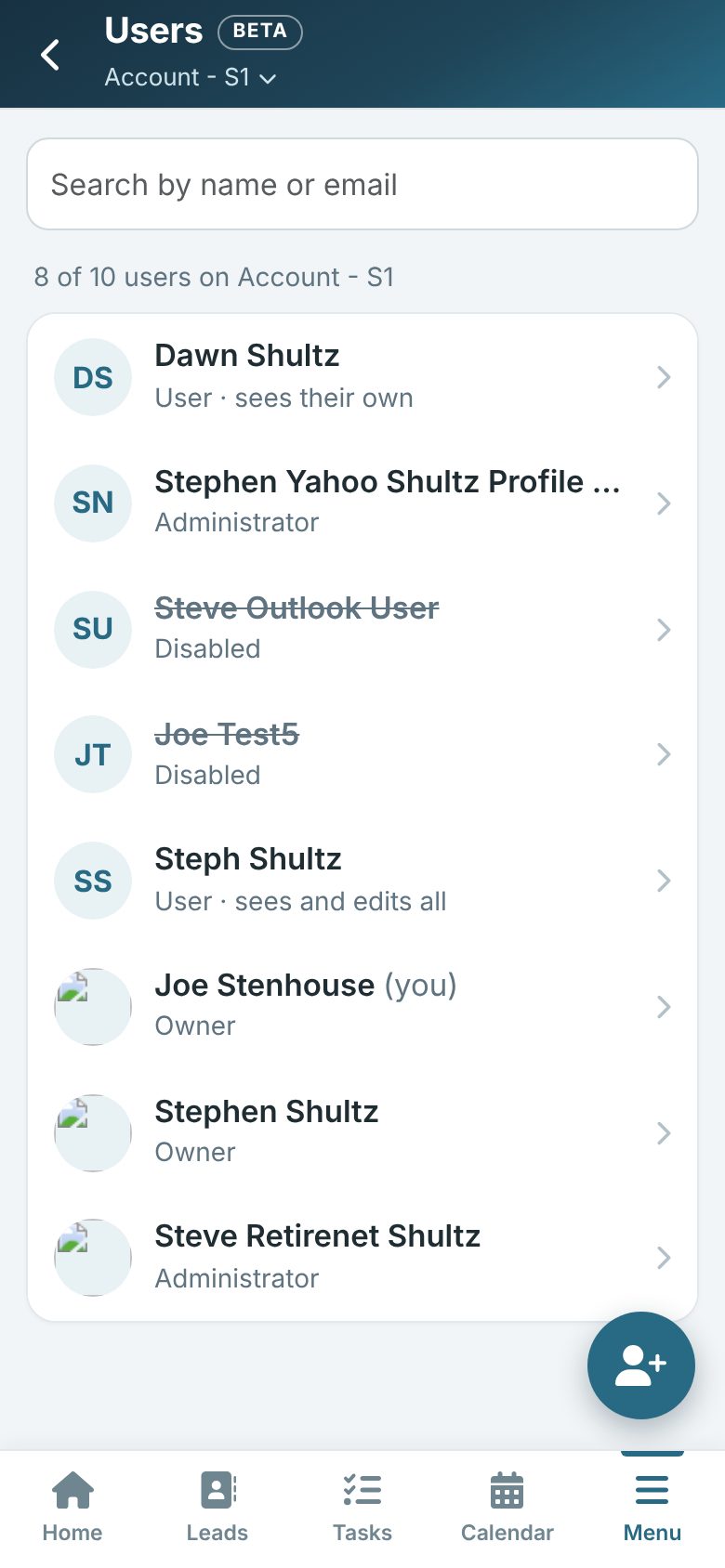
On your phone, tap More (or Menu) and then Users.
Everyone on the account is listed with their role and how many users the account has room for. Tap someone to see their email, role and when they last signed in.
Adding a user
Administrators tap the + button and fill in:
- Their email address, name, a new password and Confirm password. Give them the password yourself; no email is sent.
- Access: Their own leads only, View all, or View and edit all.
- Whether they are an Administrator.
If they already have an Open Leads sign-in, they are added with it and keep their own name and password. If the account is full, Open Leads tells you; the owner can add room in Billing.
Disabling or enabling someone
Tap the person and then Disable or Enable. A disabled user cannot sign in to this account. You cannot disable yourself, the account owner or the only administrator.
Tip: Detailed permissions are set the same way new users start: with the account’s standard permissions.