Workflows on your phone
See every workflow and what it does, preview its emails, rename it, remove a step, or delete it.
On this page
Opening your workflows
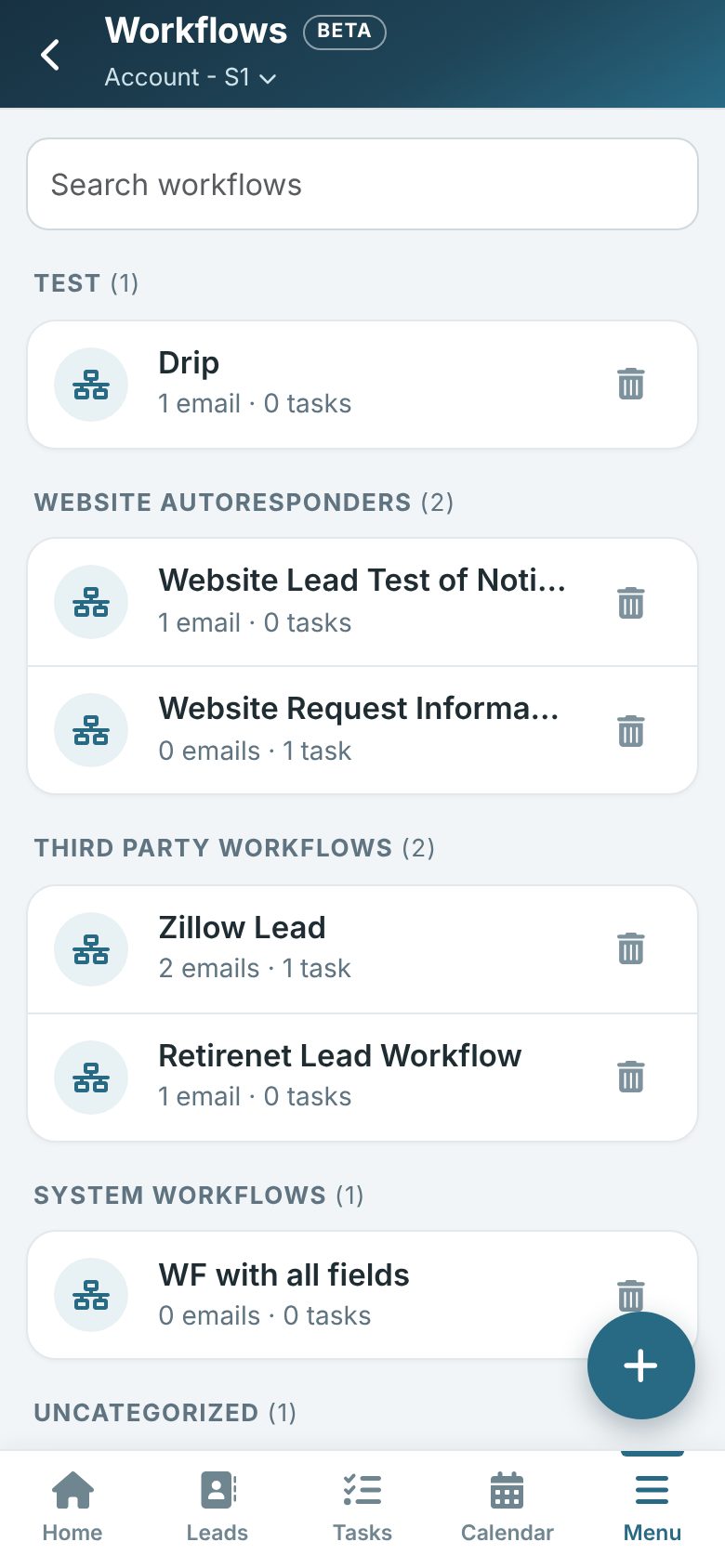
On your phone, tap More (or Menu) and then Workflows.
They are listed by category with how many messages and tasks each one has. Use the search box to find one quickly.
Creating a workflow
- Tap the round + button at the bottom of the list.
- Give it a name and, if you use them, choose a category.
- Tap Create and open. The new workflow opens straight away so you can add its messages and tasks.
What a workflow does
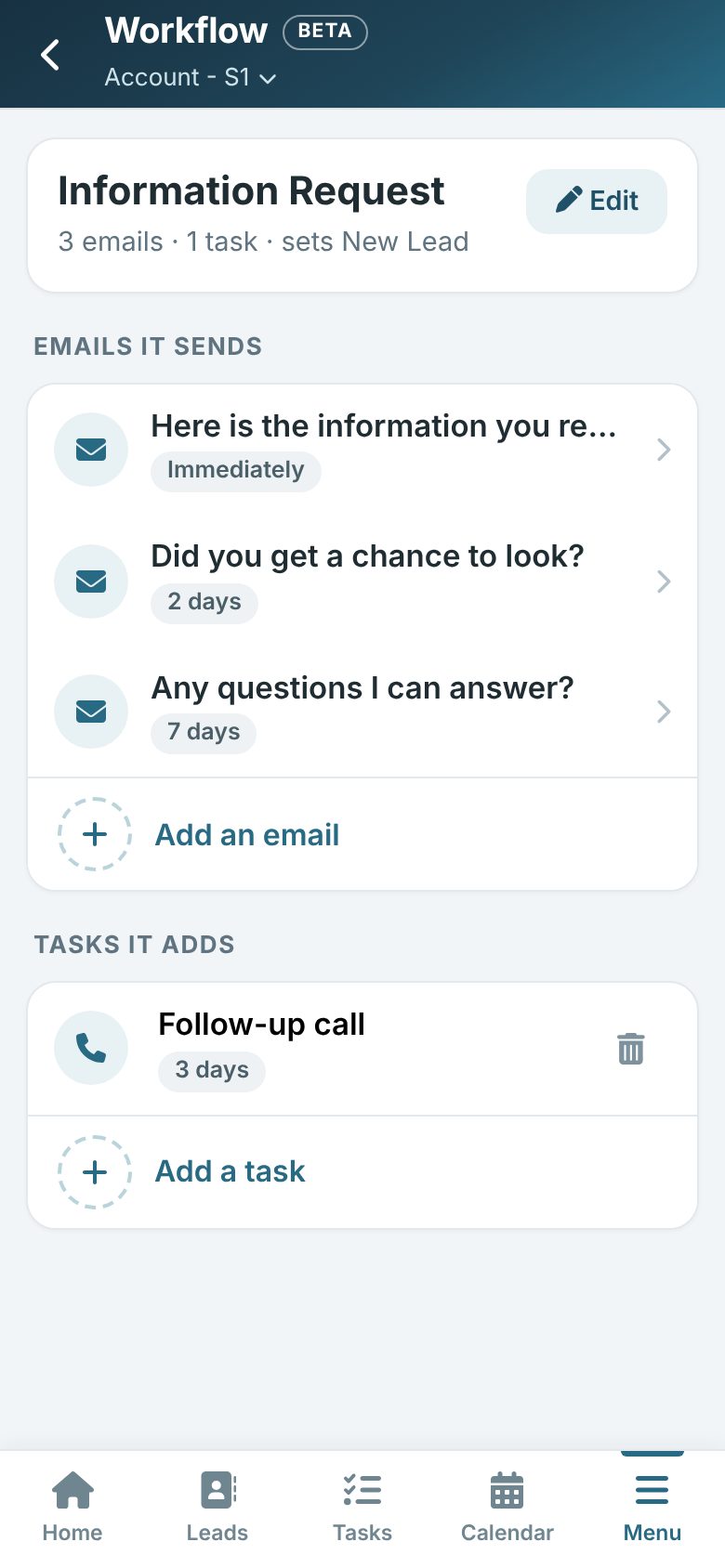
Tap a workflow to see the messages (autoresponders), in the order they go out and when each one is sent, and the tasks. Tap a message to preview exactly what it looks like.
Adding a message
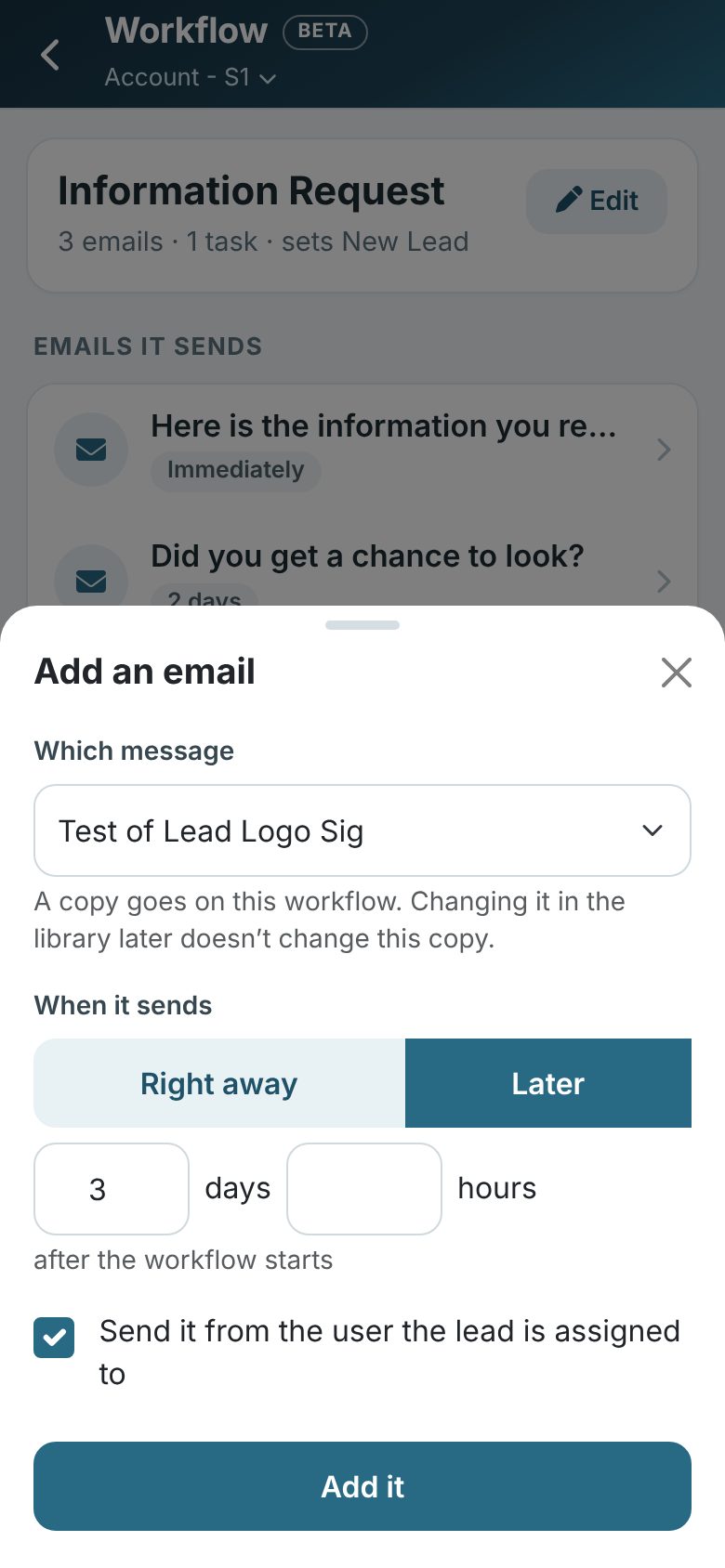
- Tap Add message under Messages (Autoresponders).
- Choose the message from your Message Library. A copy goes on the workflow, so changing the library message later doesn't change it.
- Choose when it is sent: Immediately, or After a delay with how many days and hours after it is applied.
- Leave Send it from the user assigned to the lead ticked, or untick it to type a From name and Reply-To.
- Tap Add.
To change when a message is sent, tap it and then When it is sent.
Adding a task
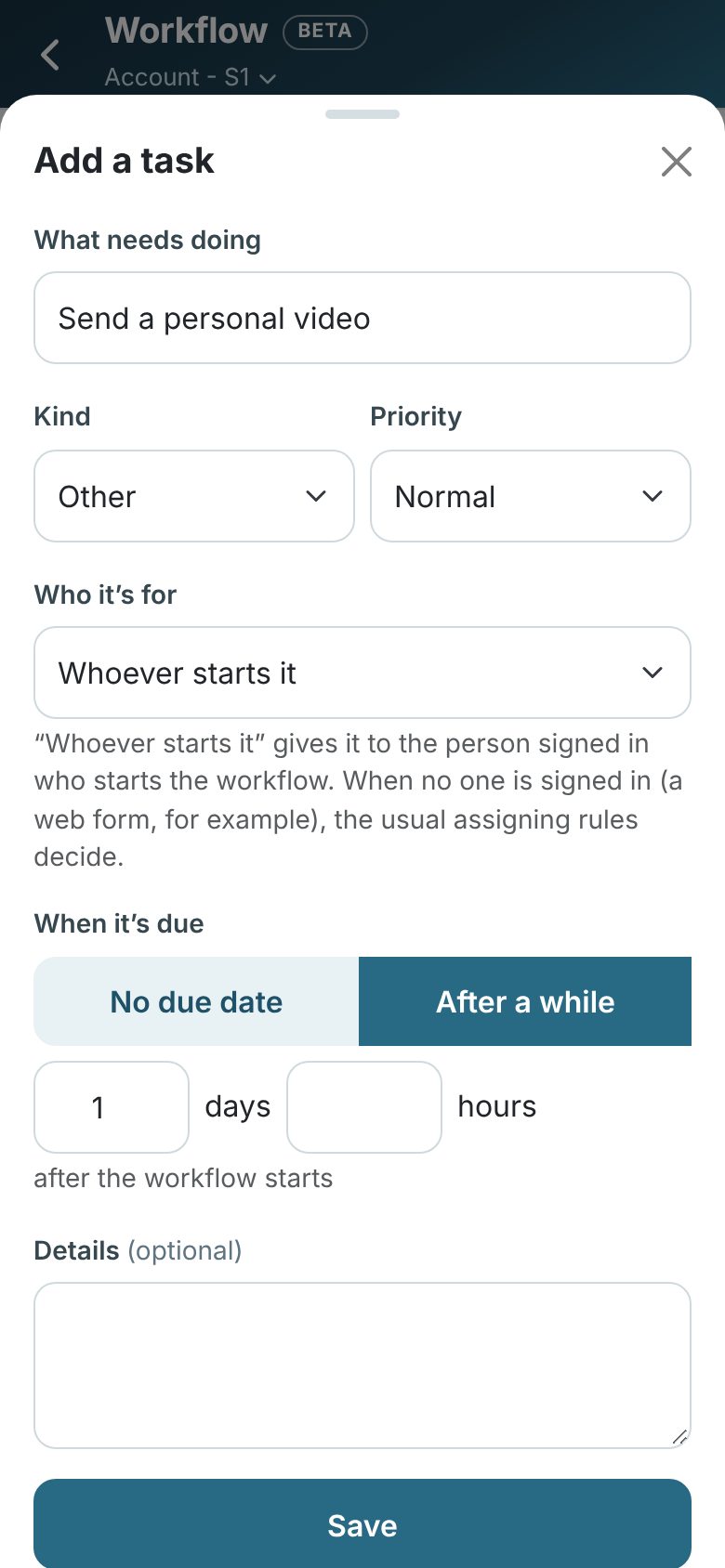
- Tap Add task under Tasks.
- Fill in the Task Name, and pick the Task Type (call, email, meeting) and priority if you like.
- Choose the User: a person, Session User, or no one.
- Choose when it is Scheduled: Not scheduled, or After a delay with how many days and hours after it is applied.
- Tap Save.
Tap any task to change it later.
Renaming and tidying
- Tap Edit to change its name or the Email notice (the addresses that get an email each time it is applied).
- Remove a message from its preview with Remove message.
- Remove a task with the bin beside it.
Deleting a workflow
Tap the bin beside it on the list. If a form or a field still uses it, Open Leads tells you, and you tick Delete it anyway to go ahead.
Applying a workflow
To apply a workflow to someone, open their page and tap Apply Workflow (see Working a lead on your phone).
Tip: Adding messages needs permission to manage messages. You need permission to manage workflows to create, change or delete them. Everyone can see the list.