Forms on your phone
Create and build forms, see how many leads each one has sent in, share or copy its link, preview it, or duplicate and delete a form.
On this page
Opening your forms
On your phone, tap More (or Menu) and then Forms.
Each form shows how many leads it has sent in and when the last one came. Private forms are marked.
Creating a form
- Tap the round + button at the bottom of the list.
- Give it a name and choose what it should do: Primary (creates a new lead each time it is submitted; use it on your website) or Update (updates a lead you already have; you send it as a link in a message).
- Tap Create and open. The new form opens straight away so you can build it.
Building a form
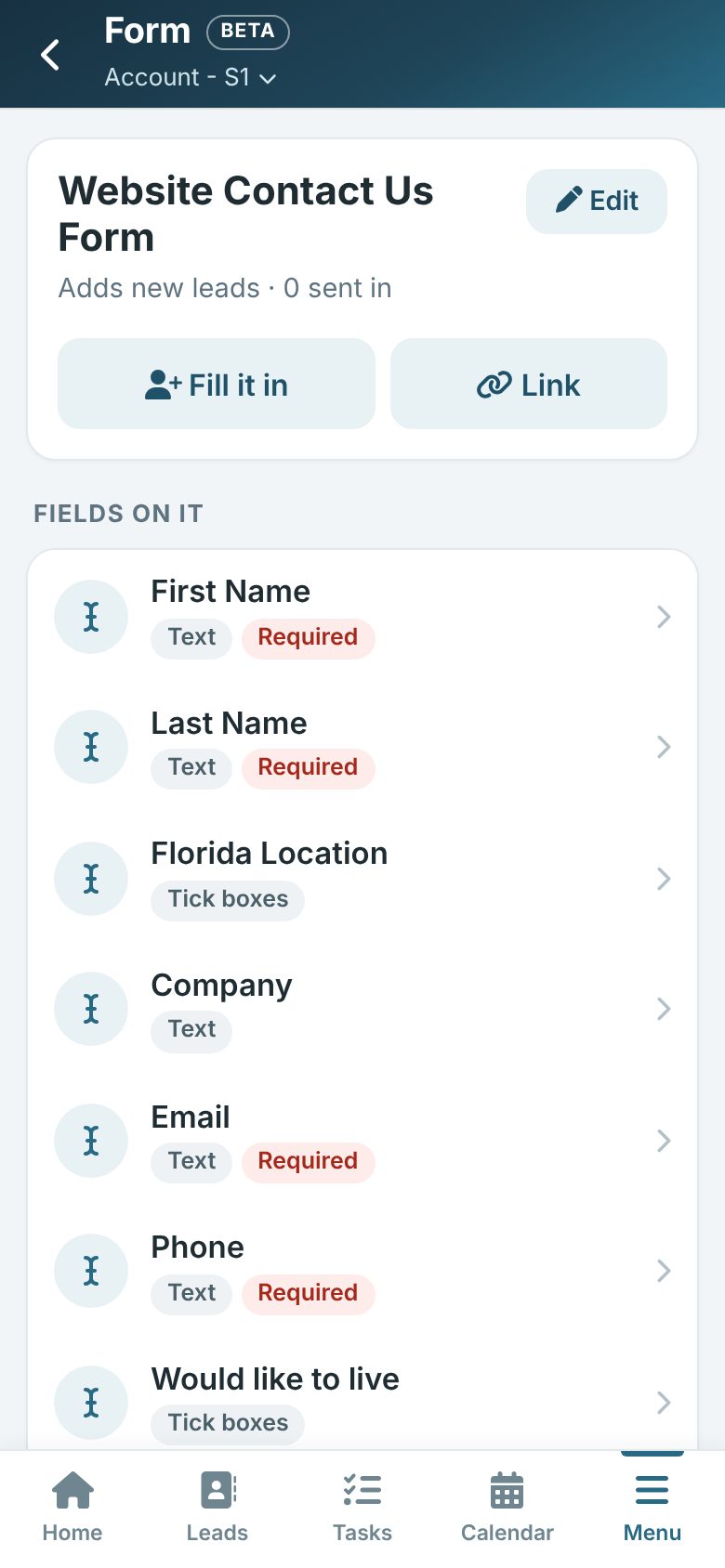
Tap a form and then Edit to open it.
- Add a field: pick a standard field (like Email), one of your custom fields, or a Text block for instructions. Use the search box to find one. It goes at the end.
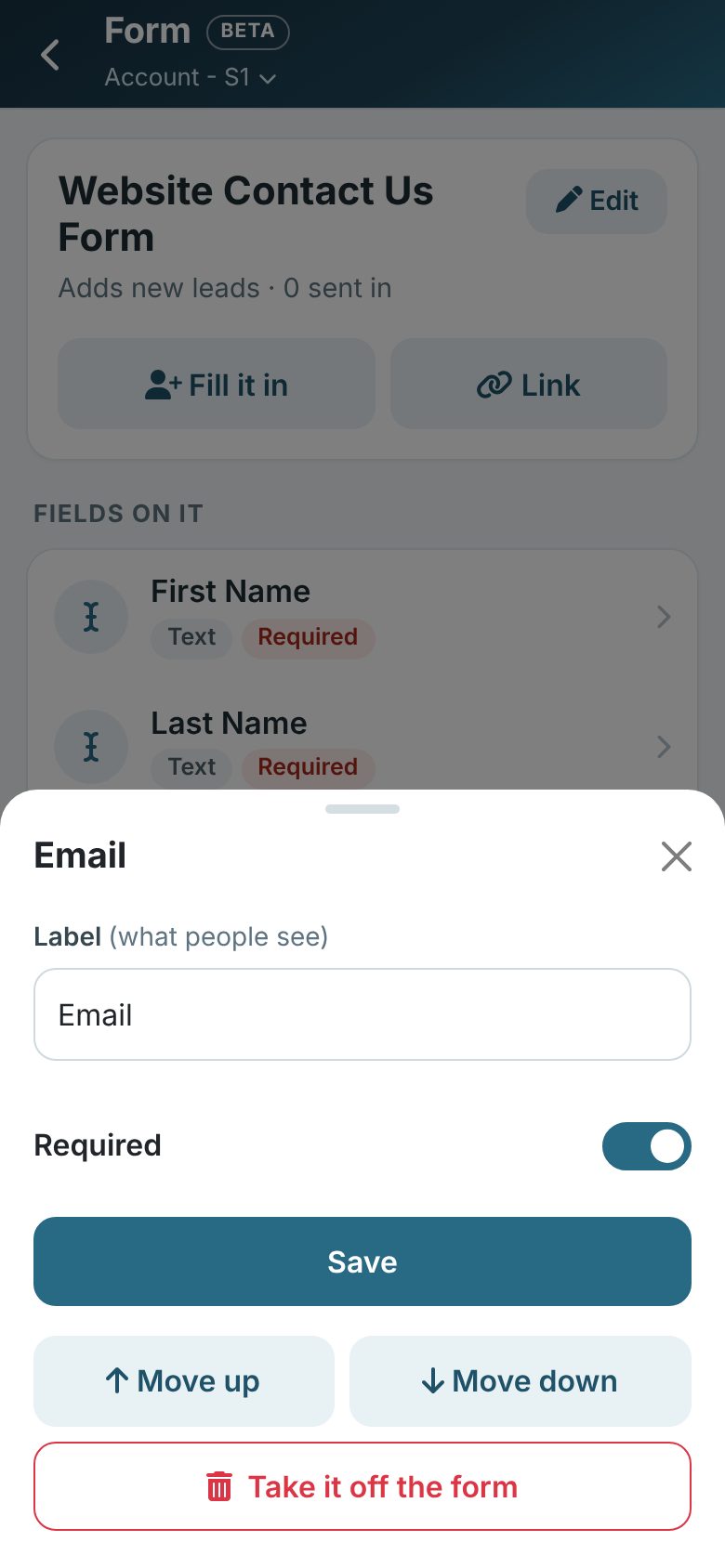
- Tap a field to change its label, make it Required, Move up or Move down, or take it off the form.
- Need a field you don't have yet? Tap New field, add it, then come back and add it to the form.
- Edit at the top changes the name, the description shown above the fields and the Redirect to page people go to afterwards.
When the form is submitted
- Apply Workflow: start a workflow for every lead that comes in.
- Autoresponder: an email from your Message Library sent to the person who filled it in.
- Style: how the form looks.
Under Settings you can make it Private, turn on Honeypot, or Hide from lead add so it isn't offered when adding a lead.
Using and sharing a form
Tap a form on the list:
- Preview: add a lead through the form yourself, for example when someone gives you their details in person.
- Open the public page: see the form the way your visitors do.
- Share the link: send it by text or email straight from your phone.
- Copy the link: paste it anywhere.
- Duplicate or Delete.
Tip: Creating, editing, copying and deleting forms needs permission to manage forms. A private form has no public link; only people signed in to Open Leads can use it.