Your profile on your phone
Change your name, title, email, time zone and password, and choose which emails you get about your leads.
On this page
Opening your profile
Tap More (or Menu) and then Profile.
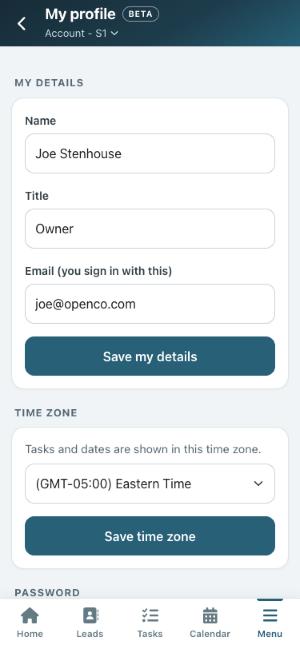
Personal information
Change your name, title or the email address you sign in with, and tap Save.
Profile picture
Tap Choose a picture to take a photo or pick one, then Upload picture. Large pictures are made smaller for you. Remove picture takes it off.
Email signatures
Pick your Default signature: None, Basic Signature, Signature + Photo or Signature + Logo. It is added when you write a single email. Use the Basic, + Photo and + Logo tabs to change each signature, then tap Save signature.
Time zone
Dates and times throughout Open Leads are shown in this time zone. Pick yours and tap Save.
Password
Enter your current password and your new one twice, then tap Change password.
Email Notifications
Choose which emails you get: when a lead is assigned to you or taken off you, when the status of one of yours changes, when a form sends in a new lead, and when a duplicate of one of yours comes in. Turn Enabled off to stop them all. Tap Save.
Text message notifications
Turn on Text message notifications, pick your Phone provider and enter your Mobile number. Then choose what you get texts about, including task reminders, and tap Save.
Role and permissions
At the bottom of your profile, Role and permissions shows what you can do in the account you are in: your role (for example Administrator or User), whether you can see and edit every lead, and Reporting. Tap Permissions to see each permission, ticked when you have it.
This box is view only. Each account has its own; switch accounts to see another. Administrators are allowed everything.