Tasks and the calendar on your phone
See what you have to do, mark tasks done, add, reschedule, reassign or delete them, and check your week on the calendar.
On this page
Your tasks
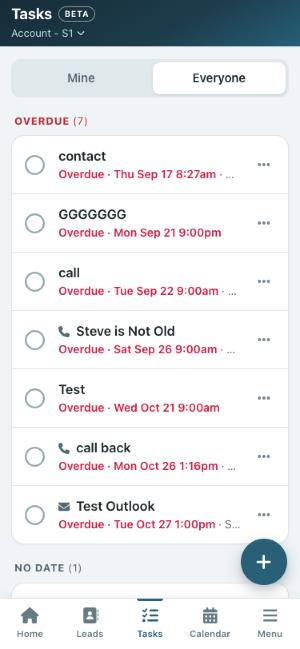
Tasks lists everything you have to do in four groups: Overdue, Today, Coming up and No date. Tap the circle to complete a task, or tap the task to open its lead.
If your role lets you see everything, Mine and Everyone at the top switch between your tasks and the whole account’s. Tasks that belong to someone else show their name.
Completed tasks
Turn on Show completed at the top of Tasks to also see the tasks already completed, newest first, each with when it was completed. It works with Mine and Everyone. On a lead, the same switch sits beside its Tasks heading. In the calendar, a completed task shows when it was completed.
Adding a task
Tap the + button (or Add task on Home or a lead). Fill in the Task Name, choose the Task Type, the date and time (or No date), and, if there are others on the account, the User it is for. Add a Description if you like.
Editing, rescheduling and deleting
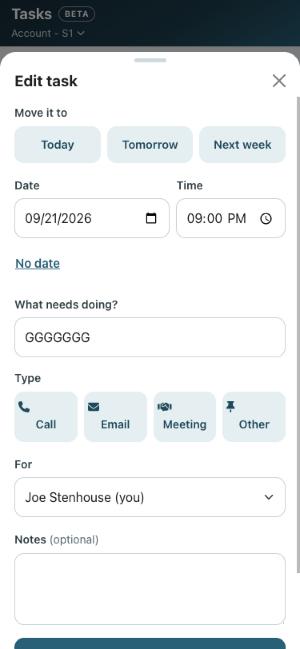
Tap … on any open task. You can:
- Under Scheduled, move it to Today, Tomorrow or Next week with one tap, or pick a date and time.
- Take the date off with No date.
- Change its name, type, description and user.
- Delete it, if your role allows (Delete all tasks, or Delete tasks for your own). Deleting adds a line to the lead’s history.
The calendar
Calendar shows a week at a time with a count of open tasks on each day. Tap a day to see its tasks, and use the arrows to move between weeks.
Priority
Every task has a priority: Urgent, High, Normal or Low, the same as on the computer.
- When you add a task, pick its priority. It starts at your account’s default (set in Task settings).
- To change it, tap ··· on the task and pick another priority. The change is noted in the lead’s history.
- Urgent tasks have a red stripe and a red URGENT label, High ones a yellow label, and Low ones a grey label. Normal ones have no label.
- On the Home screen and in each group on the Tasks screen, the most important tasks are listed first.
Call tasks
A Call task on a lead has a green phone button. Tap it to:
- Call the lead with one tap on their number.
- Read your call script, filled in with the lead’s details. If you have more than one script, pick one; your phone remembers which.
- Write what happened and tap Log call. It goes into the lead’s history.
- Tap Complete the task to finish it, or Not yet to keep it.
Reminders
When adding or editing a task with a date, choose Reminder by Email, SMS Text or both, and when to be reminded (for example Remind 15-minutes before). New tasks start with the reminder from Task Settings. Text reminders go to the mobile number in your profile.
Branching
Under Completing this task will run the following, pick a workflow to Apply when the task is completed. Turn on Enable Branching to ask a Branch Question instead: when the task is completed you answer yes or no, and the workflow for If Yes or If No starts. This is on tasks for a lead.