Adding and editing leads on your phone
Add a lead with as many details as you have, edit any lead you work, and change who it is assigned to.
On this page
Adding a lead
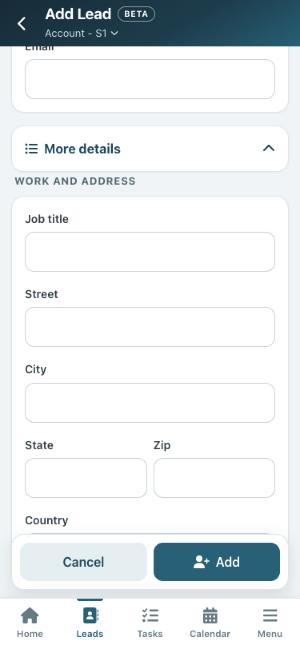
Tap the + button on the Leads screen, or Add lead on Home. Fill in a name or a company, and their phone (with its type) and email if you have them.
Tap More details to add:
- Job title and address.
- Types.
- Assigned to: you are ticked to begin with. Tick other people to give it to them as well, or instead. They are told about it the same way as on the computer.
- Custom fields: choose one from Fill in another one to add it.
Tap Add. You land on the new lead’s page, ready to call or add a task.
Tip: If you only see your own leads and you leave yourself off, you will not see the lead after it is added. Open Leads warns you before you do.
Editing a lead
On the lead’s page, tap Edit beside Details. You can change the name, company, job title, email, up to three phone numbers and their types, the address, types and custom fields. Only what you change is saved, so nothing else is touched. Custom fields with formatting are changed on the computer.
You can edit a lead when it is assigned to you, or when your role lets you edit everything.
Changing who a lead is assigned to
On the lead’s page, tap Change beside Assigned to, tick everyone who should work it, and tap Save. People who are added or taken off get the same notices as on the computer.