Working a lead on your phone
Everything on a lead’s page: calling, texting, logging, changing status, tasks, photos and files, starting a workflow, details and history.
On this page
Call, text, email and map
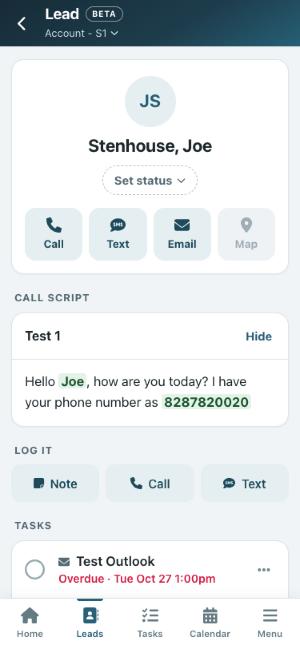
The big buttons at the top of a lead call, text or email them, or open their address in your maps app. If they have more than one number, Open Leads asks which one.
After a call or text, when you come back to Open Leads it offers to log it, so the history stays complete.
Status
Tap the status under the name to change it. Some statuses ask a few questions first, exactly as they do on the computer, and any status actions your account has set up (such as archiving) happen the same way.
Custom fields
The custom fields on the lead show near the top, under your account’s categories, the same as the Custom Fields panel on the computer. The first two categories are open. Tap Show more fields to see the rest, or turn on Always show all fields (the same setting as on the computer).
- Tap a field to change its value, then tap Save. Remove takes the field off this lead.
- Attach Custom Field adds a field the lead doesn’t have yet: pick it, fill it in and tap Save.
- Fields with formatted text show as they are and can’t be changed on the phone.
- Fields that came in with the lead from an outside source show under Read-Only Fields.
Call script
If your account has call scripts and the lead has a phone number, the script shows with the lead’s details filled in. Pick another script from the list, or tap Hide.
Comment, Log Call, Log Text and Log Visit
Comment, Log Call, Log Text and Log Visit add an entry to the lead’s history. If the lead is being followed, a comment can be a Public Comment, which shows on the lead’s following page.
Tasks
The lead’s open tasks are listed. Tap the circle to complete one, tap … to edit or reschedule it, or tap Add task. Turn on Show completed beside the heading to see the tasks already completed, newest first.
Attachments
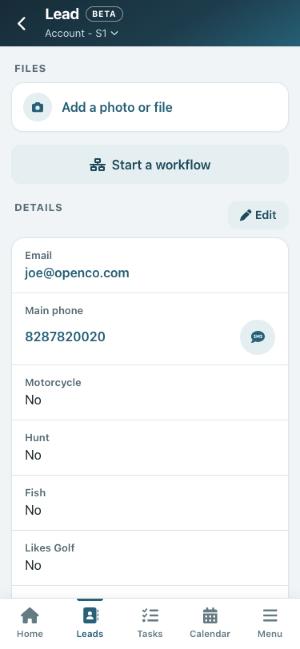
Tap Add Attachment. You can say what it is (for example “Signed quote”), then Take a photo with your camera or Choose a photo or file from your phone. Photos are made smaller before they are sent so they upload quickly; files can be up to 10 MB. Tap a file in the list to open it.
Apply a workflow
Tap Apply Workflow, search or pick one from the list, and tap Apply. Its tasks, emails and changes begin right away, just as when you apply it on the computer. You need permission to apply workflows to see this button.
Details
Email, phones, address, who it is assigned to, where it came from and when it was added. Tap Edit to change them, or Change beside Assigned Users (see Adding and editing leads on your phone).
Grouped leads, stored duplicates and campaigns
If the lead is in a group or has stored duplicates, the others you can open are listed, and tapping one opens it. The primary lead of a group is marked Primary. If the lead is on an email campaign that is running or paused, the campaign names are shown.
Tap Group Actions to:
- Create a Lead Group with this lead as its primary, or Add this Lead to a Group by picking the group’s primary lead.
- Add a lead to this group: search for a lead that is not in a group yet.
- Make this the Primary Lead, or Remove this Lead from this Group.
- Archive all leads within this group.
History
Everything that has happened, newest first: comments, calls, texts, visits, emails, status changes and files. The latest five show first. Tap View all history to see them all, and Show less to fold the list back.
Tap one of the buttons above the history (Status, Comment, Audit, Email, Call, Text, Attachment, Visit) to show only that kind of entry. All shows everything again.
Archive or delete
At the bottom of the page, if your role allows it. You are warned first if the lead is on an email campaign.
Opportunity
The Opportunity card tracks the lead as a deal, the same as the card on the computer.
- Not tracked yet? Tap Start tracking and pick a pipeline.
- Tap the amount to add or change what the deal is worth, one time or recurring.
- The card shows the stage the lead is at. Tap it to pick a different stage.
- Tap the date row to set or remove the expected close date. It turns amber a week before and red once it is overdue.
- Tap Won or Lost (with a reason, if you like). A won or lost deal can be reopened with Reopen.
- Every change is saved to the lead’s history.
Who opened and clicked
Each email in the history shows what happened after it went out: when it was opened, which links were clicked (and how many times), and any bounce with its reason. Opens made automatically by a mail program are marked as such.
Lead Actions: Mark Unread and Copy
Tap the … button at the top right of a lead for Lead Actions:
- Mark Unread: the lead shows as new again in your list.
- Copy: copy or move the lead into another of your accounts. Choose the account, who the copy is assigned to, and what is copied. In that account shows what matches there before you copy.
- Apply Workflow, Archive and Delete.
Following
When a lead is being followed, Details shows Following: On with a link to the lead’s following page.