Using Open Leads on your phone
Open Leads has a simple mobile version made for phones. Here is how to open it, find your way around, and switch to the full site when you need it.
On this page
Getting to the mobile version
There is nothing to install. On your phone, open your web browser (Safari, Chrome or any other), go to app.openleads.com and sign in as usual. Open Leads sees that you are on a phone and opens the mobile version for you.
Tip: Add Open Leads to your home screen so it opens like an app. On an iPhone, tap the Share button in Safari and choose Add to Home Screen. On Android, tap the menu in Chrome and choose Add to Home screen.
Finding your way around
Five buttons along the bottom of every screen take you anywhere:
- Home: your day at a glance.
- Leads: your list, with search, filters and views. A red number shows how many new leads are waiting for you.
- Tasks: everything you have to do, overdue first.
- Calendar: a week at a time, one day’s tasks.
- More (or Menu): your profile, switching accounts, campaigns, support and sign out.
The arrow in the top left goes back. The account you are working in shows under the page name; tap it to switch accounts if you have more than one.
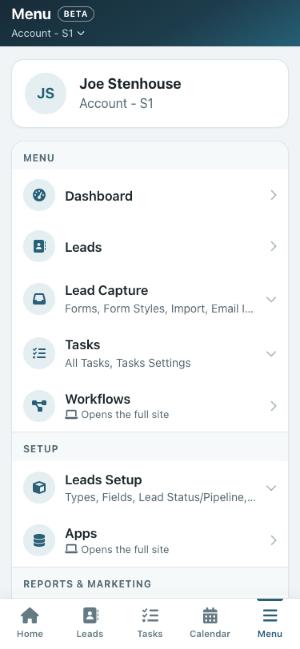
What you can do on your phone
The mobile version covers the everyday work of keeping up with your contacts: finding them, calling, texting and emailing them, logging what happened, changing their status, editing their details, adding photos and files, starting workflows, handling your tasks, cleaning up duplicates and spam, applying actions to a whole view, restoring archived leads, and keeping your message library and call scripts.
You can also look after your setup from your phone: workflows, forms, users, Apps & API, custom fields, types, task settings, your email and the message library (see Setup on Mobile). Imports and exports, reports and building campaigns are done on a computer.
It is a beta
The mobile version is new and updated often, so you will see new features regularly. If something does not work the way you expect, tap More > Contact support and tell us.